Basic Apply Recipes Tutorials & Troubleshooting
The FUJISTYLE Android version is currently undergoing internal testing, and the promised content is gradually being launched. You can keep an eye out and it will be released soon~
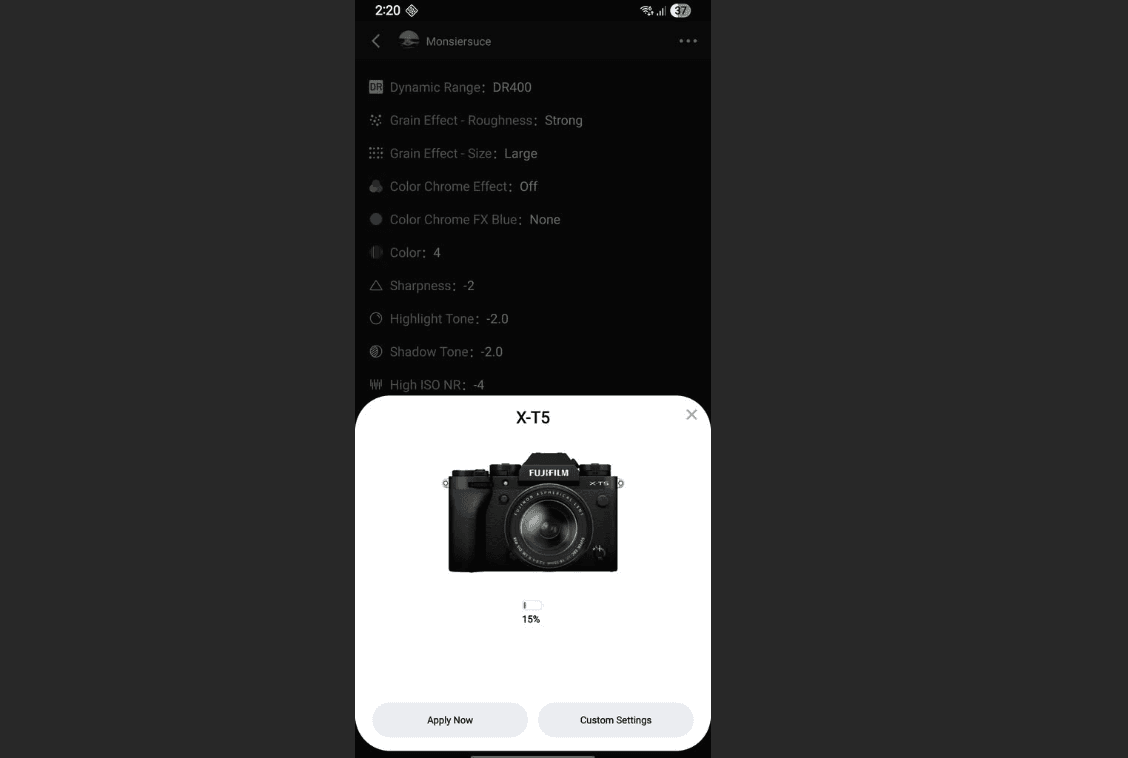
1) What you need
To sync color recipes on Android, you must connect your phone to the camera via USB.
Use a data-capable USB cable (some “charging-only” cables won’t work).
Your phone may require USB OTG (On-The-Go) to be enabled so it can recognize the camera.
What is OTG?
OTG lets your phone act like a “host” device so it can connect to external hardware (camera / USB drive / keyboard). If OTG is off (or unsupported), the phone may only charge and won’t detect the camera.
2) Camera connection mode (important)
Please set the camera’s USB mode correctly:
For tethered shooting (fixed shooting):
Connection Setting → Connection Mode → USB TETHER SHOOTING (FIXED)
For recipe sync / RAW conversion / backup & restore:
Connection Setting → Connection Mode → USB RAW CONVERSION / BACKUP RESTORE (better for custom )
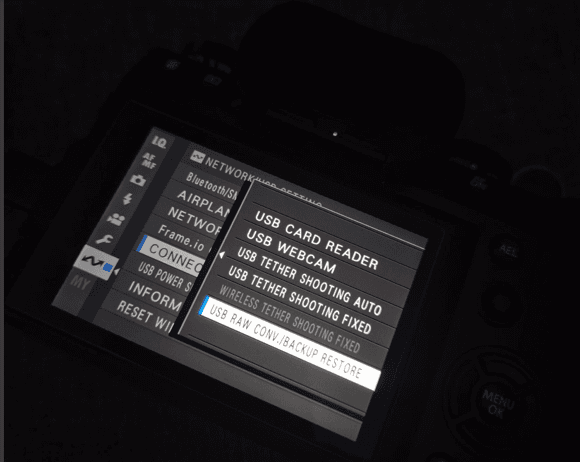
Special note for XM5:
XM5 may require Tether Shooting (Fixed) mode to sync properly.
4) Supported camera models
XS20,XS10, XT5, XT4, X100VI, X-H2, X-H2S, XM5, XS10, XT50, XT30, XT30-2,
GFX50, GFX100, GFX100S, GFX100 II, X100RF XE5 , X-Pro 3,X-Pro 2
XT30-3,
(And most other compatible models should work as well.)
Troubleshooting
A) Settings didn’t apply / recipe looks “invalid”?
Check if the camera is in M mode (Manual).
Some settings may be overridden in Auto / semi-auto modes.
B) Camera won’t connect?
Please check these in order:
Camera USB mode is set correctly (see Section 2)
OTG is enabled on your phone (see below)
Cable supports data transfer (try another cable)
Try a different OTG adapter (Type-C OTG) if needed
C) “Camera is in use” / connection is occupied
Check if another app is accessing the camera over USB (gallery, file manager, USB tools, etc.)
Close other USB-related apps in the background, then reconnect.
How to enable OTG (Android)
Fastest method:
Go to Settings → use the top search bar → search “OTG” → enable OTG / OTG Connection / USB OTG.
Notes:
Some phones don’t show an OTG toggle (it may be auto-enabled when you plug in).
On some brands, OTG may auto-turn-off after a period of inactivity — just re-enable it if needed.
5) How to enable OTG (General + common brand paths)
6) (Add-on) USB is “occupied / in use” (Android)
Here is a tutorial on modifying OTG errors and USB usage settings You can take a look at the solution
Other - here is iOS
For basic tutorials on connecting your camera and importing recipes, please refer to:
Specific Note for X-T30 II Users: Since we have received many reports regarding the X-T30 II, we have compiled a specific troubleshooting guide: [X-T30 II Issue Summary]. However, users of other models may also find this helpful if encountering similar issues.
Common Connection Issues
1. Unable to connect on iPhone 14 Pro and earlier models: Please check if your USB adapter (OTG) matches our recommended models. Apple has very strict standards for adapters. If your setup differs from the one shown above, we strongly suggest testing with the recommended combination to avoid compatibility issues.
Note: We have no direct affiliation with the brands mentioned above. You are free to choose other products with identical specifications for testing.
2. Connection successful, but recipe changes do not take effect: If the app shows the recipe was applied but the camera settings haven't changed:
- Check USB Mode: Verify that your camera's USB connection setting is set to USB RAW Conv./Backup Restore.
IMG_4769.jpeg
Check Custom Slots: Confirm that you are trying to import into Custom Settings C1 – C7.
Last Resort: If it still doesn't work, some cameras may require a Reset/Initialization (please assess the data risk yourself). Note: Most users do not need to go this far.
Still need help? If you have tried all the steps above and the issue persists, please contact us at fujistyleinfo@163.com. We welcome your feedback.